
Our website uses cookies to enhance your browsing experience.



 Contents
To configure a quality profile, go to Management > Quality profiles. Only users with the Project management permission can access it.
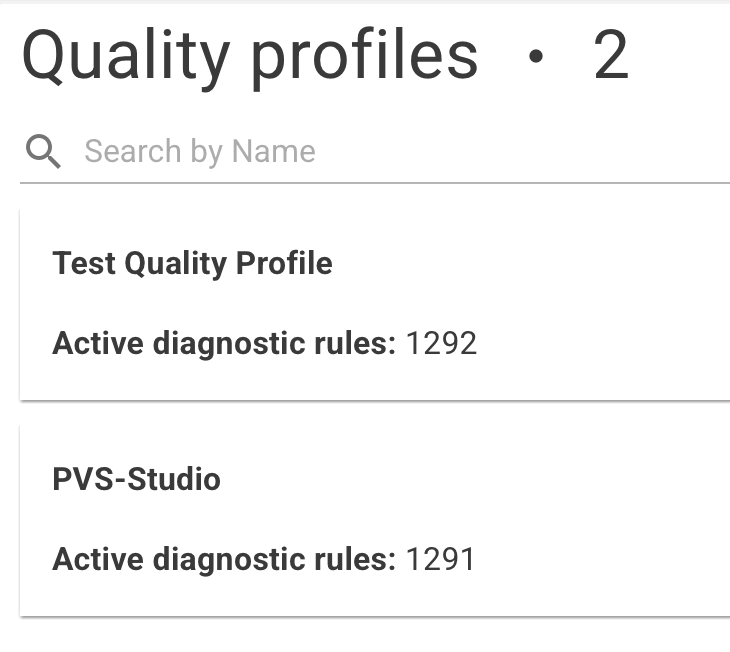
A quality profile can be created via Menu > Create quality profile or copy an existing profile from its menu.
When creating a profile, specify only its name: all other settings can be configured on the quality profile page.
A new quality profile does not contain any diagnostic rules:
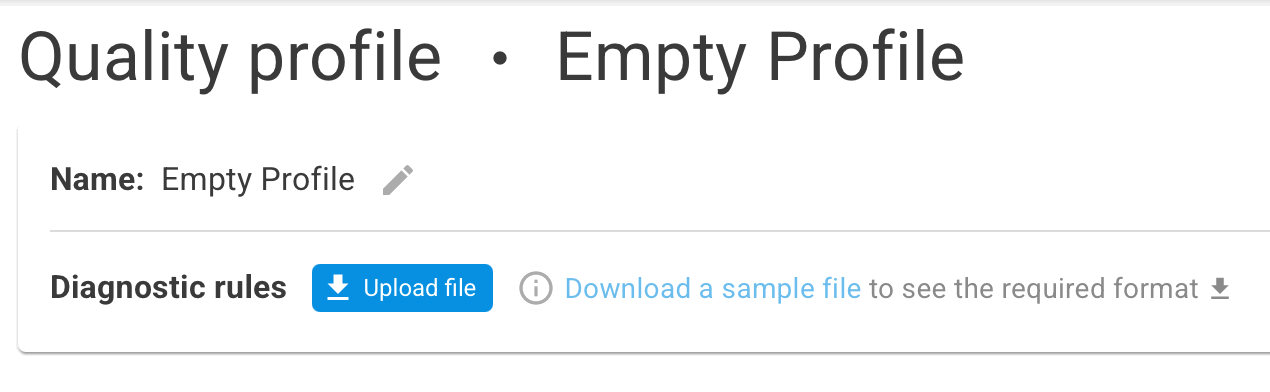
Download the PVS-Studio quality profile in JSON format using the link and then upload it manually.
After uploading the quality profile, the page will look as follows:
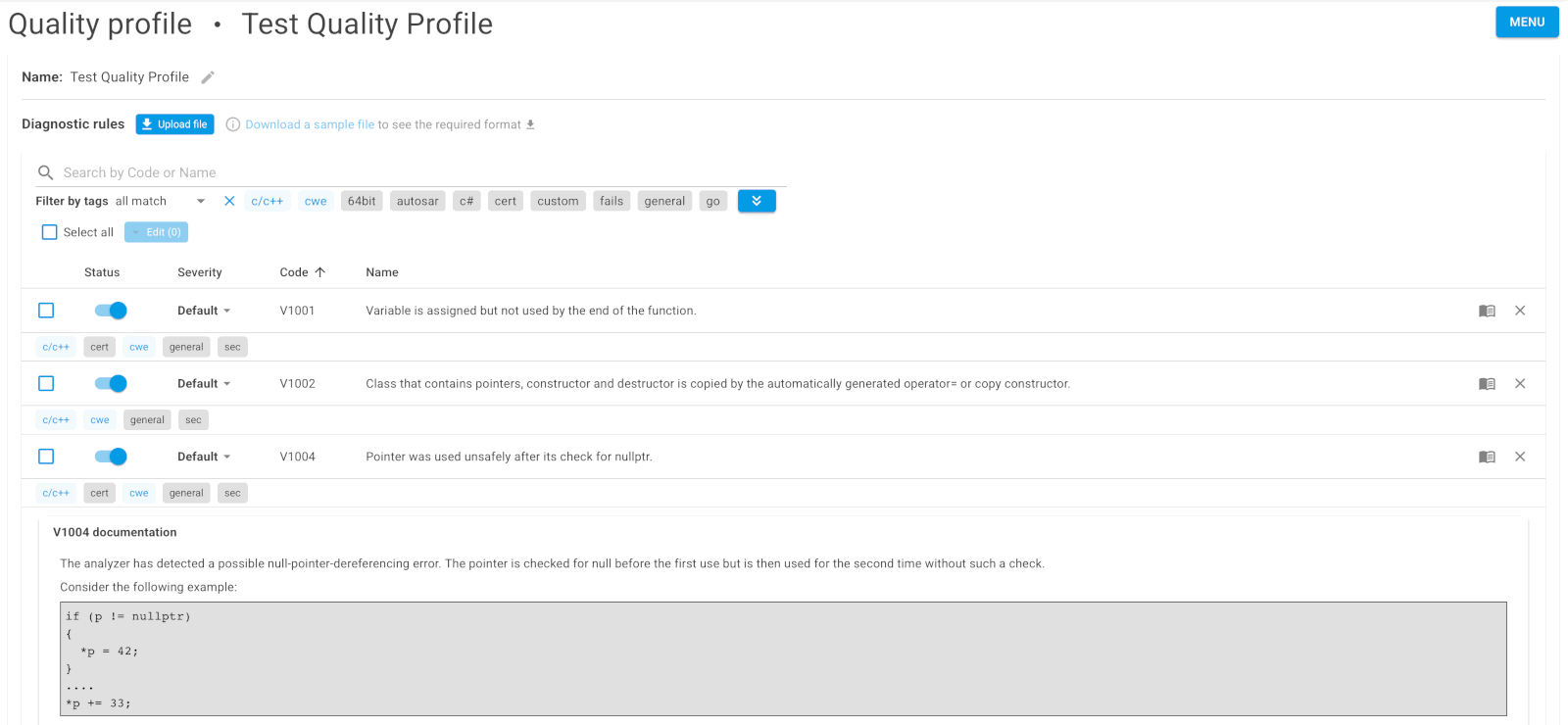
The following interface elements are available for configuring a quality profile:
Each diagnostic rule contains the following information:
Projects that do not use the quality profile receive all analysis results generated by the static code analyzer.
When the quality profile is assigned to the project, only the enabled diagnostic rules included in the profile are processed.
When the code analyzer is updated, it may introduce warnings with new diagnostic rule codes. An existing quality profile will not include these new rules. To update the profile, download the latest quality profile from the analyzer's website and upload it to the profile page.
Updating the profile doesn't affect project settings because only the following fields are updated:
New diagnostic rules added to an existing profile are disabled by default. You can see them before enabling.
Was this page helpful?
