
Our website uses cookies to enhance your browsing experience.



 Contents
Direct links to download the distributions are available on the download page.
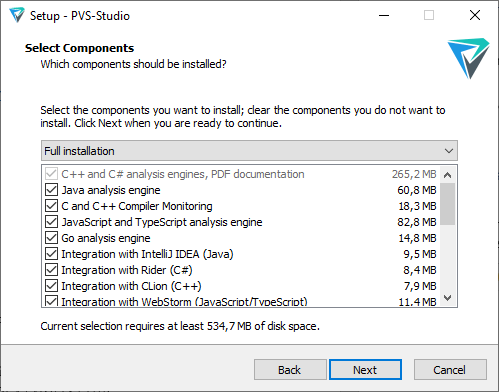
To install pvs-golang, select Go analysis engine. On the installer page, you can also choose to install the GoLand plugin.
For debian-based systems
Before Debian 11 and Ubuntu 22.04:
wget -q -O - https://wcdn.pvs-studio.com/etc/pubkey.txt | \
  sudo apt-key add -

sudo wget -O /etc/apt/sources.list.d/viva64.list \
  https://wcdn.pvs-studio.com/etc/viva64.list

sudo apt-get update
sudo apt-get install pvs-golang
Debian 11 and Ubuntu 22.04 and newer:
wget -qO- https://wcdn.pvs-studio.com/etc/pubkey.txt | \
  sudo gpg --dearmor -o /etc/apt/trusted.gpg.d/viva64.gpg

sudo wget -O /etc/apt/sources.list.d/viva64.list \
  https://wcdn.pvs-studio.com/etc/viva64.list

sudo apt-get update
sudo apt-get install pvs-golang
For yum-based systems:
wget -O /etc/yum.repos.d/viva64.repo \
  https://wcdn.pvs-studio.com/etc/viva64.repo
yum update
yum install pvs-golang
For zypper-based systems:
wget -q -O /tmp/viva64.key \
  https://wcdn.pvs-studio.com/etc/pubkey.txt

sudo rpm --import /tmp/viva64.key
sudo zypper ar -f https://wcdn.pvs-studio.com/rpm viva64

sudo sed -i \
  's|enabled=1|enabled=1\ngpgkey=https://wcdn.pvs-studio.com/etc/pubkey.txt|' \
  /etc/zypp/repos.d/viva64.repo

sudo zypper refresh
sudo zypper install pvs-golangTo install, use the following command:
Deb package
sudo gdebi pvs-golang-VERSION.debor
sudo apt-get -f install pvs-golang-VERSION.debRpm package
sudo dnf install pvs-golang-VERSION.rpmor
sudo zypper install pvs-golang-VERSION.rpmor
sudo yum install pvs-golang-VERSION.rpmor
sudo rpm -i pvs-golang-VERSION.rpmArchive
tar -xzf pvs-golang-VERSION.tar.gz
sudo ./install.shInstallation commands:
brew install viva64/pvs-studio/pvs-golangUpdate commands:
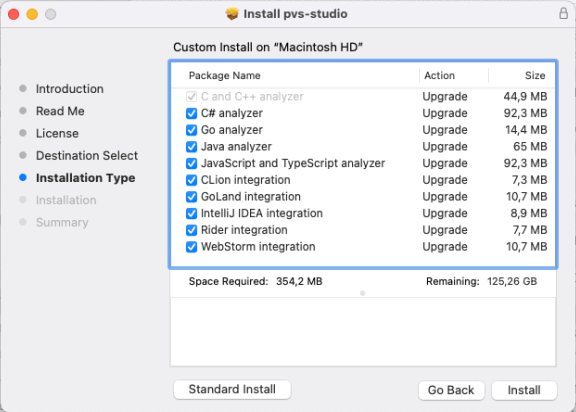
brew upgrade pvs-studio-golangRun the .pkg file and follow the instructions. On the Installation Type page, click the Customize button and select the components you want to install.
To install from the archive, run:
unzip pvs-golang-VERSION.zip
sudo ./install.sh
Was this page helpful?
